+1 (571) 354 8500Free Audit

Solar workflows that run the customer journey for you

The welcome email, the permit update, the review request and the Wi-Fi fix go out on autopilot, and stop as soon as the homeowner acts.

  • Proven automations, ready to switch on for welcome, reviews, referrals, documents and offline systems

  • Personalized with real project data so every message sounds like your team wrote it

  • Email, text and push under your own brand, from your own address and number

Tony LostraccoJoe BennettConor DarbyJohn GaffiganLloyd LeeMichael GibsonKeith GibsonMark DicksonFortunat Mueller

Sunvoy is rated 5/5 stars by hundreds of solar installers like you
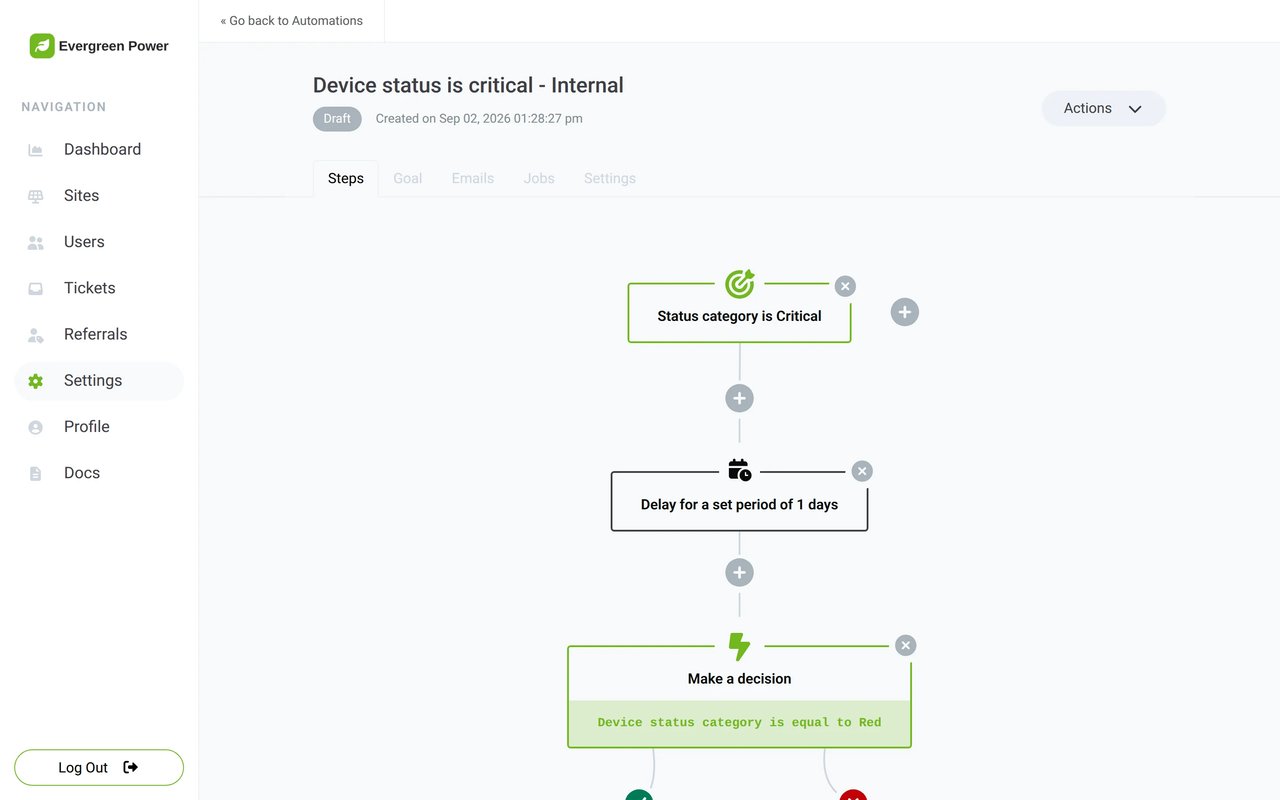
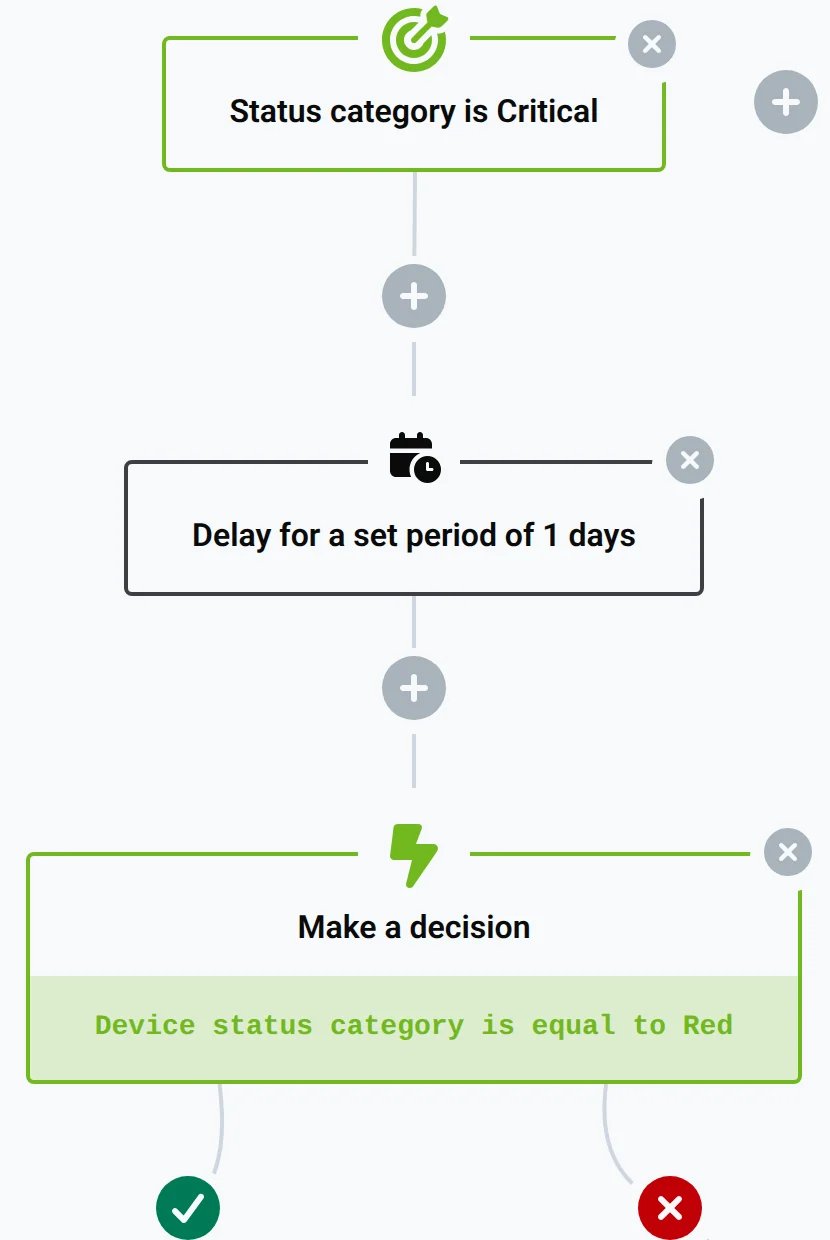
The first steps of an automation in Sunvoy: a trigger, a one-day delay and a yes/no decision
Evergreen Powernow

Hi Maria, thank you for going solar with Evergreen Power. Please log into our app to track your solar project at app.evergreenpower.example

Sent by: Send welcome email
The customer journey

Seven moments that run themselves

Every moment below is a ready-made automation. Switch it on, adjust the wording to your liking, and your team never sends the same email by hand again.

  1. 1
    Contract signedSend welcome email

    Login details by email, then email and text reminders over the next weeks.

    EmailTextStops when: the homeowner logs in
  2. 2
    First loginCustomer logs in for the first time

    Your sales and project managers get an email when the homeowner opens the app for the first time.

    Team alert
  3. 3
    Every project step2.3 Permit approved

    One update email for each step you pick. Your project managers stop copying CRM data into emails.

    Email
  4. 4
    DocumentsDocument upload

    The homeowner hears when you upload a permit or a design, and your project manager hears when the homeowner uploads a utility bill.

    EmailTeam alert
  5. 5
    Install completeNPS survey on last project milestone

    A good score gets a review request by email and text. A bad score goes straight to your sales and project managers.

    EmailTextTeam alertStops when: the survey is answered
  6. 6
    Three weeks laterAsk for referral

    Happy homeowners get their personal referral link three times, four weeks apart, and hear back when a lead signs.

    EmailText
  7. 7
    After installationWi-Fi or internet disconnection

    When a system stops reporting, the homeowner gets reconnect steps by email and text, with follow-ups.

    EmailTextTeam alertStops when: the system is healthy again
  8. And more out of the box

    New ticket and message alerts, signed documents, zero production and site status escalation. Each one stays a draft until you switch it on.

Triggers

Start from anything that happens in Sunvoy

A project step, a new ticket, a signed contract, a system that goes offline: almost anything can start an automation. And a reminder stops on its own when the homeowner acts somewhere else.

  • ProjectsConstruction step changed to Permit approved
  • UsersHomeowner account logged in
  • TicketsTicket is created
  • SystemsProduction value equals zero
  • DevicesStatus category is Critical
  • Inverter alertsAlert type is Ground fault
  • SitesMonthly performance changes to high production
  • LeadsLead is converted
  • Referral payoutsPayout status changes to ready
  • DocumentsDocument is created
  • Signature requestsSignature request is fully signed
  • CheckoutsCheckout is completed
Delays and decisions

Wait for the right moment. Check before you send.

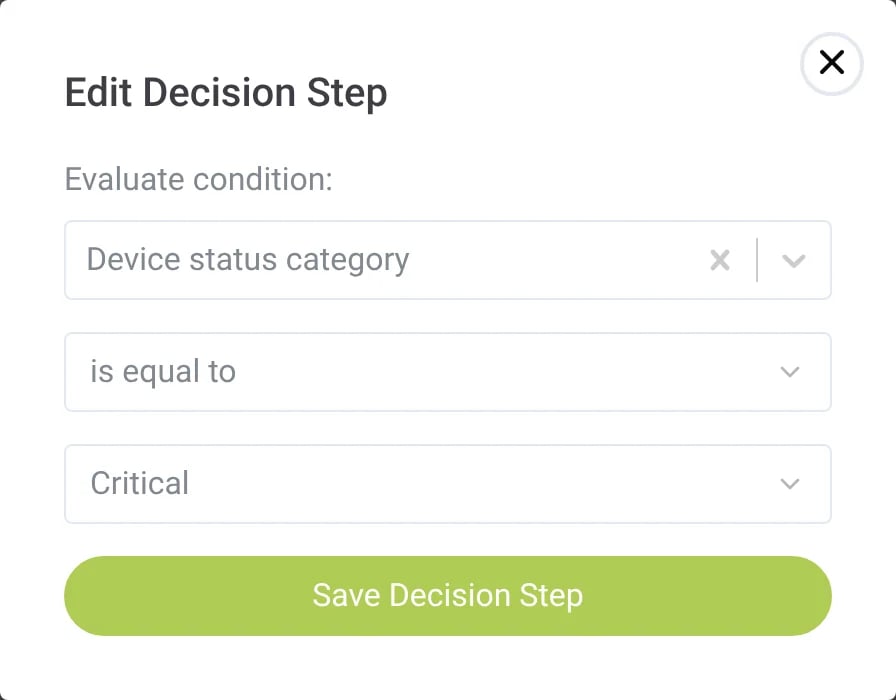
Check the project before a message goes out, and send it when the homeowner is most likely to read it, in their own time zone.

The Edit Decision Step window with the condition Device status category is equal to Critical
Delay for a set period of 3 days then execute on Mon at 09:00 recipient's local time
The homeowner's side

Updates in your brand, written once by your team

Most of a personal update is project data: the name, the address, the permit date, the system size. Sunvoy fills it in for you, so your project managers keep their time for the conversations that need a person.

Automation doesn't replace the personal touch. It creates space for it.

Hervé BillietHervé BillietBoard member of Sunvoy, former co-founder and CEO of a residential solar installer
Out of the box

Start from 20 proven automations

Start with the automations installers use most, plus an update for every project step you pick. Everything starts as a draft, so you read and edit every message before it goes live.

Create Automations for all Project Steps

We will create automations for sending email or text notifications for all project steps you enable. All automations and emails will be created as draft so you can preview and edit them before publishing.

Project steps
  • 1.1 Contract signed
  • 2.1 Site survey
  • 2.3 Permit approved
  • 3.2 Install scheduled
Automations
  • Send welcome email
  • NPS survey on last project milestone
  • Ask for referral
  • Document upload
  • You have documents to sign
  • Solar system wifi or internet disconnection notification
  • Site status escalation
Add Automation
3.2xmore referrals per customer
Sunvoy cut our cost of acquisition in half by making our customers our biggest advocates and actively requesting reviews and referrals at every step of their customer journey.
Mo Abdalla, CEO & Founder, Good Faith Energy
VoyScriptBeta

When a flowchart is not enough, script it in blocks

For operations teams that need more than a flowchart. Build advanced logic with visual blocks and data from Sunvoy and your CRM, from rules that act in the moment to workflows that wait days for the next event.

app.evergreenpower.example/workflow
The VoyScript workflow editor with the block categories VoyScript, Objects, Logic, Loops, Math, Text, Lists, Variables, Functions, Data Sources and Types
Sync converted leads
Start Workflow when:Lead Converted
Create a new record inHubSpotDeal
Suspend for:3daysthen continue onMondayat09:00inRecipient's local time
Update an existing record
Finish Workflow
Where Workflows is going

Messages today. More of the operation next.

Next, automations take on more of the operation: they open service tickets, call the tools you already use, and text each homeowner from the right office in the right language.

Open a service ticket from an automation

Waitlist

An error code or production far below the estimate opens a ticket for your O&M team, with the right priority.

Make a decisionProduction is below 50% of estimate
Create a service ticketPriority: Medium · O&M team

Scripts that call webhooks, send messages and run on a schedule

Waitlist

VoyScript gains outgoing HTTP calls, emails, texts and push, scripts that run every week, and scripts that start other scripts.

Run everyMonday at 07:00
Send HTTP requestPOSThooks.evergreenpower.example/weekly
Send a text message toproject manager
  • Waitlist

    Weather-aware alerts

    Hold an underperformance message when the weather explains the dip.

  • Waitlist

    Projects in connected tools

    Create the monitoring site or the design project when a project reaches a step.

  • Waitlist

    Texts from the local office

    Each text comes from the number of the office or state that serves the homeowner.

  • Waitlist

    Each person's language

    Automation emails and texts in the language each homeowner picked.

  • Waitlist

    Describe it, AI builds it

    Write what you want in a sentence. The assistant drafts the automation and shows the change before it applies.

  • Missing a trigger or an action?

    Tell us what your team still does by hand. We plan Workflows with the installers who use it.

    See if you qualify

Frequently Asked Questions

Get answers to the most common questions and objections about Sunvoy's platform and capabilities.

No. You build automations in a visual editor with triggers, delays, decisions and actions, or start from the 20 ready-made ones. VoyScript, the block-based scripting layer, is optional and in beta.

Explore more

Where Workflows fits in

Focus on what you do best. Automate the rest.

Start with the welcome email and the Wi-Fi alert, read every draft, and switch on the next automation when your team is ready.